6 Orchestra and instruments
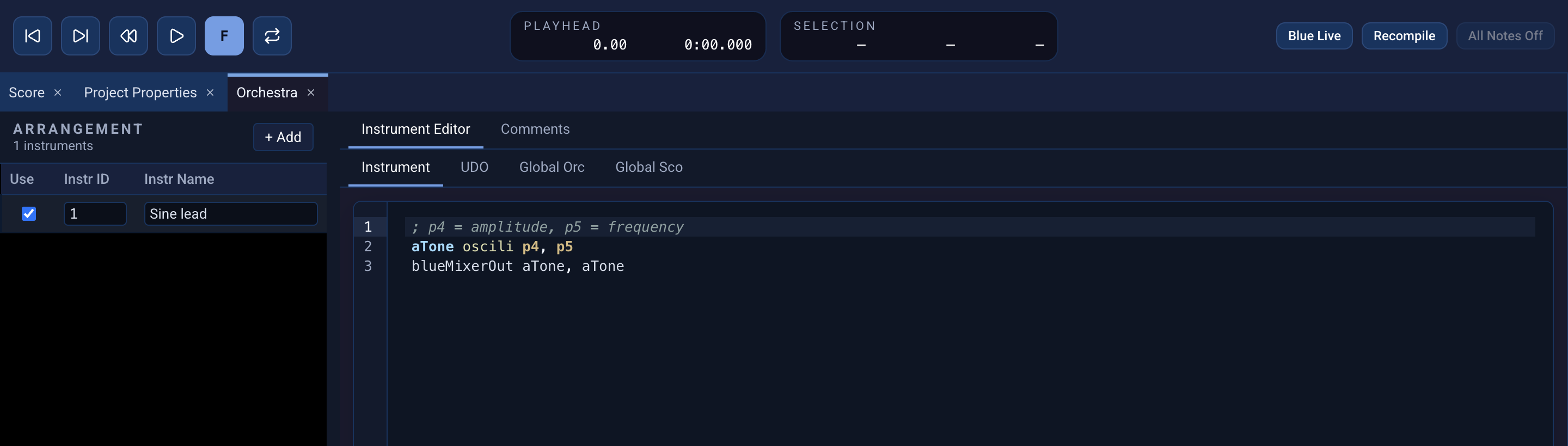
The Orchestra panel contains the current project’s instrument Arrangement and the editor for the selected instrument. A Csound score event refers to an instrument by its Instr ID; the First project tutorial pairs i1 with instrument ID 1. The visible instrument name helps you organize the project, while the ID connects it to generated score events. The personal instrument collection lives in a separate Libraries panel.
6.1 Organize the project Arrangement
Open Orchestra from Window → Editors if the panel is hidden. Click + Add and choose an instrument type. Blue 3 offers Generic Instrument for Csound code, plus Python Instrument, JavaScript Instrument, BlueX7, and BlueSynthBuilder. These types have different editors and runtime needs.
The Arrangement table has Use, Instr ID, and Instr Name columns. Clear Use to exclude that assignment from the generated orchestra. Edit Instr ID to match the score events that should call it; IDs may be numbers or names. Instr Name is a descriptive label. Click a row to edit its instrument on the right. Drag the divider to give the Arrangement or editor more room.
Right-click a row for Enable/Disable, Add Instrument, Copy, Cut, Paste, Import…, Export…, and Remove. The same menu can Replace with Generic or Convert Generic to BSB. Import inserts an instrument after the selected row; Export saves that assignment for reuse. Paste inserts a copied instrument after the row. Removing an assignment removes it from the project Arrangement, so score events still using its ID will need another instrument.
6.2 Edit an instrument
A Generic Instrument has Instrument, UDO, Global Orc, and Global Sco tabs. Put the instrument body in Instrument without instr or endin; Blue adds those lines when generating a CSD. The other tabs are for embedded user-defined opcodes and additional global orchestra or score text. The selected instrument also has a Comments tab. Other instrument types have their own editors; see Instrument types for their current controls and runtime requirements.
6.4 Reuse an instrument from Libraries
Open Libraries from Window → Properties and select Instruments in its type filter. User Libraries → Instruments is a personal collection available across projects. Create folders to organize it; right-click an entry to duplicate, copy, cut, paste, rename, reorder, import, export, or delete as applicable. You can rename a user-library entry by double-clicking its name or selecting it and pressing F2. Search the panel to find an instrument by name.
To keep a project instrument for later use, drag its Arrangement row to the user Instruments root or a folder in Libraries. You can also Copy the Arrangement row and Paste it into a user-library folder. To use a library instrument in the current project, drag it onto the Arrangement or copy it in Libraries and paste after an Arrangement row. The resulting project entry has its own Instr ID and Use setting; check both before playing the score. The user-library and project editors are separate, so check which entry you selected before editing.
6.5 Connect an instrument to the score
The first field of a Csound i event names an instrument. For i1, ensure the intended Orchestra row has Instr ID 1 and Use is enabled. The remaining score fields are values the instrument reads as p fields. For example, a Generic Instrument can use p4 for amplitude and p5 for frequency, as in the tutorial.
Use Project → Generate CSD to Screen to inspect the assembled instrument and events before rendering. If the event calls the wrong instrument, check its i number against Instr ID. For output options and playback, see Rendering; for placing events, see Score. For code shared across instruments, see Global Orchestra and Global Score and UDOs. Tables covers project-wide Csound function tables.