21 PianoRoll
PianoRoll is a SoundObject for drawing pitched notes. Its horizontal axis is time; its vertical axis is pitch. Unlike a fixed MIDI roll, its note template lets you decide which Csound p fields receive pitch, amplitude, or additional values.
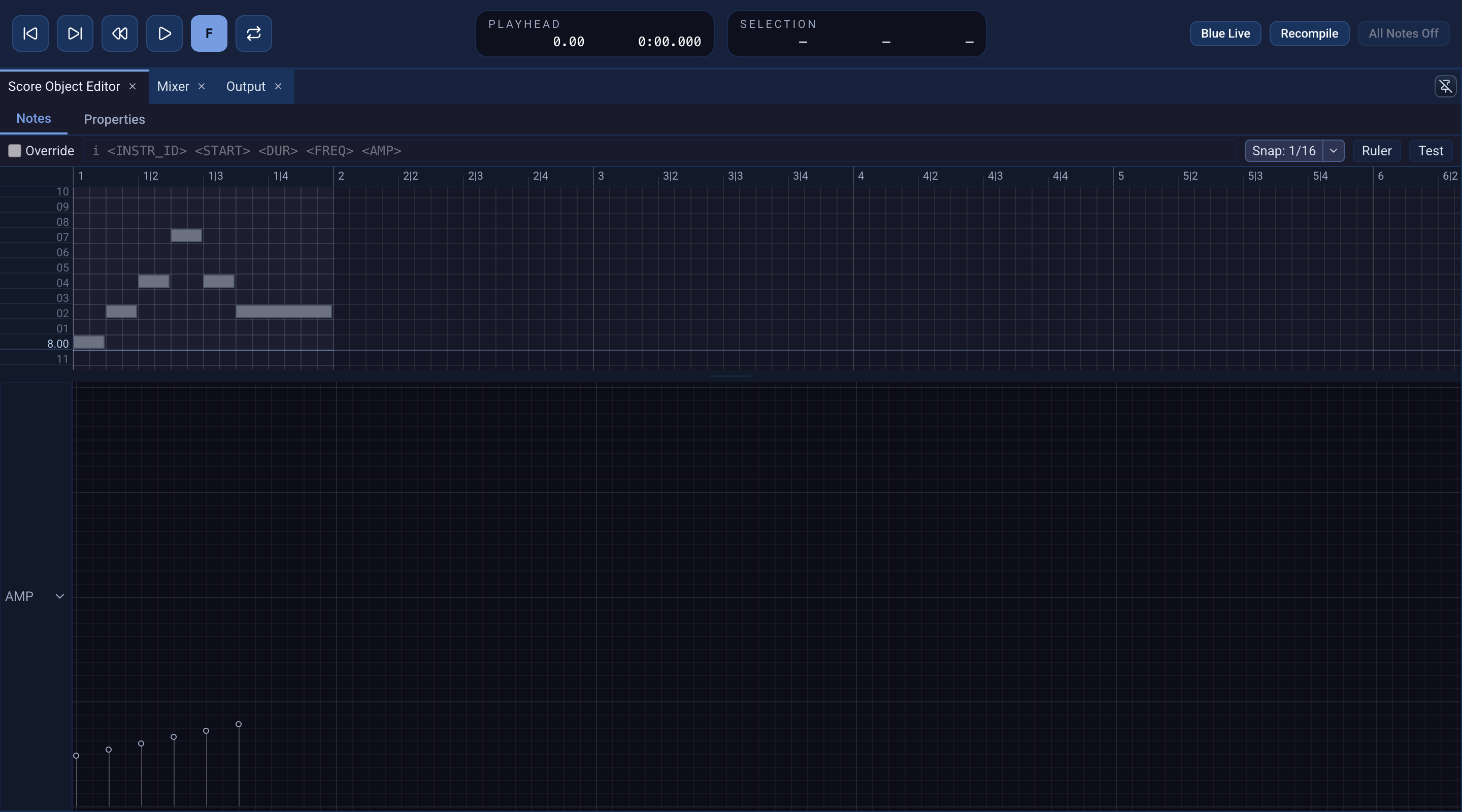
21.1 Set up a roll for an instrument
Right-click a SoundObject layer in the Score and choose Add SoundObject → PianoRoll. Double-click the object, then open its Properties tab before drawing notes.
Instrument ID must match an enabled row in the Orchestra. The Note Template turns each drawn note into a Csound score event. A new PianoRoll uses:
i <INSTR_ID> <START> <DUR> <FREQ> <AMP><START> and <DUR> come from the drawn note; <FREQ> comes from its pitch; <AMP> comes from the AMP field. Spaces between template values matter. Template tokens are replaced for each note; literal numbers and other score text pass through. For example, <FREQ><FREQ> would concatenate two pitch values into one field. Select a single note in the Notes tab and enable Override above the canvas if it needs a different template; turn the override off to use the roll’s template again.
Because the First project instrument expects amplitude in p4 and frequency in p5, change the template to:
i <INSTR_ID> <START> <DUR> <AMP> <FREQ>Keep Instrument ID at 1 for that project. In Additional Fields, set the AMP row’s Default to 0.15 before drawing new notes; its original default is 1. Existing notes keep their own field values, so adjust those in the field editor if you changed the default after drawing. This makes the roll’s generated events use the same p field order and level as the first-project GenericScore.
21.2 Draw and edit notes
Open the Notes tab. Hold Shift and drag on empty space to create a note; horizontal movement sets its duration. Click a note to select it, drag its body to move it, or drag an edge to resize it. Drag on empty space without Shift for a marquee selection. Shift-click adds or removes an individual note from the selection. Select notes and press Delete to remove them.
To duplicate a phrase, select its notes and use Copy (Command-C on macOS, Control-C elsewhere), then Command-click empty canvas on macOS or Control-click on Windows and Linux where the copied phrase should start. Cut uses Command-X or Control-X. The canvas context menu also has Copy, Cut, Paste, Remove, and Select All. A paste uses the clicked time and pitch as the placement target. Command-A or Control-A selects all notes when focus is in the note editor.
Copy and paste preserve note positions, lengths, pitches, field values, and any note-specific Override template. A pasted note keeps its own p field order when that override is enabled.
The Snap control sets note placement; the Ruler button configures the local time display. The PianoRoll can use the Score’s ruler settings or its own primary and secondary formats. See Time for the distinction between display, snap, and stored positions. Click the main Snap button to enable or disable snapping; use its arrow menu to choose musical, triplet, time, sample, or SMPTE divisions. The Ruler dialog can inherit the Score settings or use local primary and optional secondary rulers. The visible ruler format does not itself change the snap value.
Below the note canvas, choose a field such as AMP and edit its values for the selected notes. The Properties tab’s Additional Fields table lets you add custom fields with a name, continuous or discrete type, bounds, and a default. Put a matching <FIELD_NAME> token in the Note Template to send that value to the instrument. Renaming a field preserves its values; removing one removes its note data.
New notes receive each field’s current default. Adding a field also gives existing notes its initial default; changing that default later does not rewrite their stored values. Changing a field’s bounds clamps its note values to the new range, and a discrete field uses whole-number values. To edit values, choose the field below the canvas and drag a note’s value handle vertically. You can also hold Control or Command and drag a selected note on the canvas vertically to change the selected field.
21.3 Pitch and generated score
Pitch Generation chooses what <FREQ> emits: frequency in hertz, Blue PCH, or MIDI note number. Frequency is the default and matches the first-project oscillator. Choose another mode only when the instrument or a Note Processor expects it. Scale starts at 12-tone equal temperament and can load a Scala scale; Transposition shifts notes by scale degrees.
The scale’s Base Frequency sets its frequency reference for hertz generation. New scales use Middle C (C4 in scientific pitch notation), about 261.625565 Hz, as their base. Edit this value in PianoRoll Properties; press Enter or leave the field to commit. Invalid input restores the previous value, and negative values are clamped to zero.
Click … beside Scale to load a .scl file. Right-click the scale name to restore 12-tone equal temperament. In MIDI pitch mode, <FREQ> emits MIDI note numbers and the editor uses the standard 12-note MIDI pitch grid rather than the loaded scale.
Click Test in the Notes tab to inspect this roll’s generated score. Then use Project → Generate CSD to Screen to inspect it in the full project. Check the instrument ID, field order, and note values before rendering.
A new PianoRoll has Repeat time behavior and a four-beat repeat point. If you stretch it on the Score, review Time Behavior and Repeat Point in Score Object Properties so the result matches the phrase you intend. See SoundObjects for the broader timing rules.
21.4 Editor shortcuts
With focus in the note editor, Alt-S toggles snap. Command or Control with + or − changes horizontal zoom; Command or Control with the up or down arrow changes note-row height. Text inputs keep their normal editing shortcuts.