32 Settings
Open Settings… from the Blue menu on macOS or the File menu on Windows and Linux. Select a section in the left sidebar, edit its values, and click Apply. Cancel discards unapplied edits; Reset Panel restores the selected section’s defaults. If you close the window with unapplied edits, Blue asks whether to save them.
These are application preferences. For settings stored with the open project, use Project Properties instead. Project Defaults affect newly created projects, not projects that already exist.
32.1 General and project defaults
General sets the default Work Directory for file choosers and imports or exports. Csound Manual URL accepts an HTTPS or local file: base URL; its own Reset button restores the default. The section also controls new user defaults, message colors, Csound error warnings, and the number of temporary files per directory.
In Project Defaults, choose the author, whether the mixer starts enabled, the default Track Layer or SoundObject Layer group, layer height, and UDO style for new projects. The same section sets the initial primary and optional secondary ruler, snap state and value, and SMPTE frame rate. The ruler changes what the timeline displays; snap controls placement. See Time before changing an existing project’s time settings.
32.2 Playback and utilities
Playback controls the playhead animation rate, a display-only latency correction in seconds, Score Follows Playback, and whether following is enabled when rendering starts.
Utility contains freeze flags and the maximum number of concurrent freeze jobs. Freeze rendering and SoundFont inspection use the managed Blue Engine Csound runtime. A legacy Csound executable preference may remain in saved settings for compatibility with older versions of Blue; it is hidden and does not select the current Blue Engine runtime.
32.3 Realtime Render
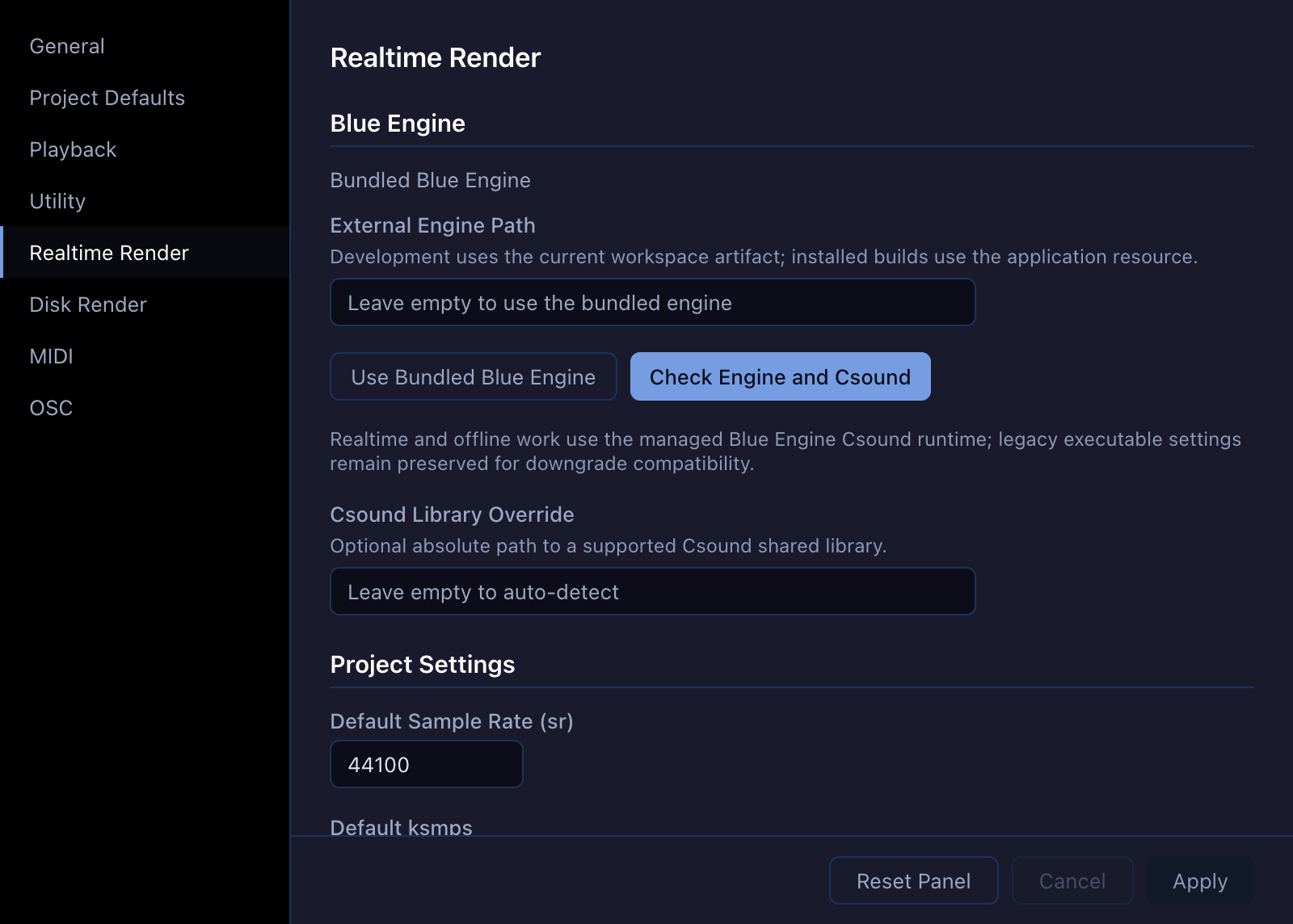
The Blue Engine section normally uses the engine bundled with Blue. Leave External Engine Path empty, or click Use Bundled Blue Engine, unless you have a separate compatible engine to run. Check Engine and Csound reports whether Blue can load the selected engine and Csound library. Leave Csound Library Override empty for automatic discovery; an absolute path can select a supported shared library when necessary.
Project Settings supplies defaults for sample rate (sr), control period (ksmps), channel count (nchnls), and 0dbfs. The Audio and MIDI subsections choose Csound runtime modules and input/output devices. Enable the driver and the required input or output, choose a module, then select a device. Blue loads the available modules and devices for the selected runtime; use Rescan Audio Devices or Rescan MIDI Devices after connecting or disconnecting hardware. Choose a discovered device from the field’s list, or enter its exact Csound device identifier; a saved or custom identifier remains editable even when the selected module does not report it. A saved module that is unavailable is identified in the status line.
Buffer Settings independently enable software and hardware buffer sizes. When enabled, Blue passes them to Csound as the realtime -b (software) and -B (hardware) options. Message Level selects note amplitude, out-of-range, warning, and benchmark messages. Other Settings can disable displays and supply additional Csound command-line options. See Rendering for starting and stopping playback.
32.4 Disk Render
Disk Render supplies defaults for sample rate, ksmps, nchnls, and 0dbfs for offline output. File Output Settings can enable a chosen file format and sample format, save peak information, dither output, and rewrite the header while rendering. The section also has its own message-level and advanced Csound options.
Render to Disk and Play opens the finished file in Blue’s Audio File Player. Render and Open Command can run an external command with $outfile standing for the rendered file; its default opens the file’s folder. The older external Render and Play Enabled and Render and Play Command preferences are retained in saved settings for compatibility but are not shown because the current play action uses Blue’s player. Disk rendering itself uses the managed Blue Engine Csound runtime. See Rendering for the project commands and output workflow.
32.5 MIDI and OSC
The MIDI section lists live MIDI input devices and their availability and connection state. Enable the controllers Blue should use, then click Apply to save the preference. Rescan refreshes discovery after a device change without changing the saved preference. This input-device list is separate from the Csound MIDI module and device choices in Realtime Render.
In OSC, set Preferred Server Port to a whole UDP port number from 1 to 65535. The panel shows whether Blue is listening and the Active port. If the preferred port is busy, Blue scans upward for an available port; the saved preference stays the same. The Supported OSC Messages table lists the accepted address prefixes. Message arguments and bundle timetags are ignored. Blue listens on all IPv4 interfaces without authentication, so use OSC on a trusted network and control access with the host firewall.