9 SoundObject Library
Use Project SoundObjects when several places in one project should share the same musical source. A definition lives in the project library; an Instance on the Score refers to it. Editing the definition changes the material generated by its linked Instances. The separate Libraries panel stores reusable SoundObjects for other projects.
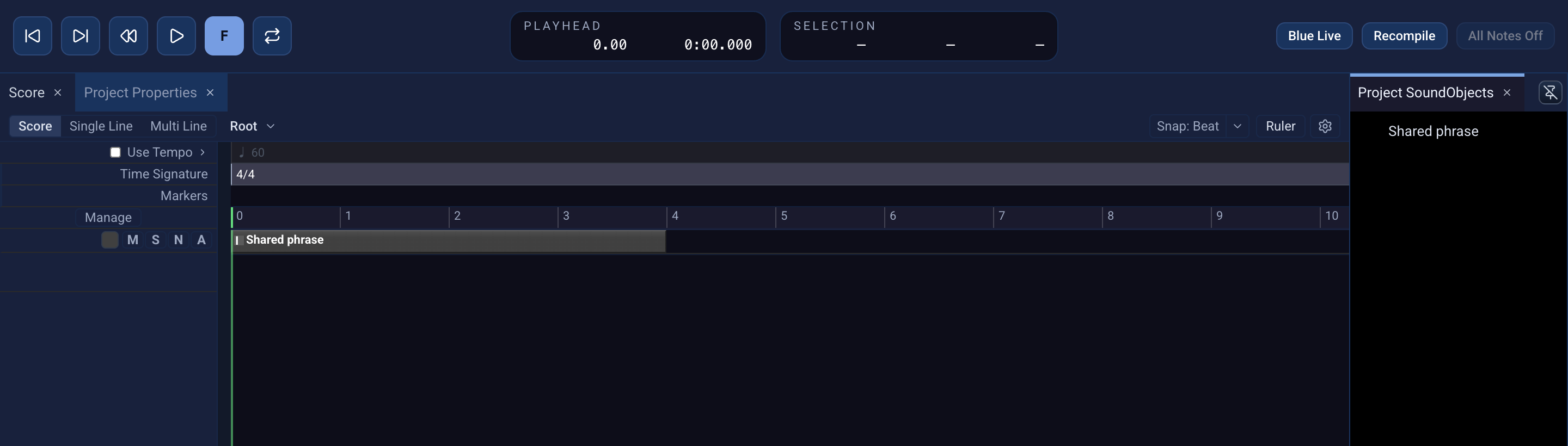
9.1 Add an object to the project library
- Create and edit a SoundObject on a SoundObject layer. For example, write a phrase in GenericScore.
- Select that one object, right-click it, and choose Add to Project SoundObjects.
- Open Window → Properties → Project SoundObjects to find the new definition. The object on the Score has been replaced with a linked Instance at the same position.
Select a definition in Project SoundObjects to open its editor. After changing the source, use the editor’s Save action. Linked Instances use the revised source when Blue next generates the score. The definition is saved with the project, rather than in your user-wide library.
9.2 Place another copy
Drag a definition from Project SoundObjects to a compatible SoundObject layer, or copy it in the panel and paste on the Score. When Blue offers a choice, Copy Instance keeps the new object linked to the project definition. Copy Independent makes an editable copy whose later changes do not affect the definition or other Instances. You can also copy and paste an existing Instance on the Score to make another linked placement.
Use Instance for the placement and processing details. A shared source is useful for a recurring motive or drum pattern; independent copies are useful when a variation should develop separately.
Deleting a project definition also removes its linked Score Instances. Blue shows their count in the confirmation dialog. The deletion is recorded in project history, so Edit → Undo can restore it while the project remains open. Check the listed instances before confirming.
9.3 Reuse an object in another project
Open Window → Properties → Libraries. Under User Libraries, expand SoundObjects. Copy a SoundObject from the Score, then paste it into that root or a folder in the user library. You can organize user-library entries in folders and use them in other projects.
Dragging or pasting a user-library SoundObject into a project creates an independent copy. To make several linked Instances within that project, first add the copy to Project SoundObjects. A user-library item is not a live shared definition across projects.